New listing creation at scale
How to create new Amazon listings at scale
Turn raw product details into complete Amazon listings without building every parent, child, title, bullet, and backend field by hand. This guide takes a new catalog from spreadsheet to marketplace-ready output.
Step 1
Start a bulk draft
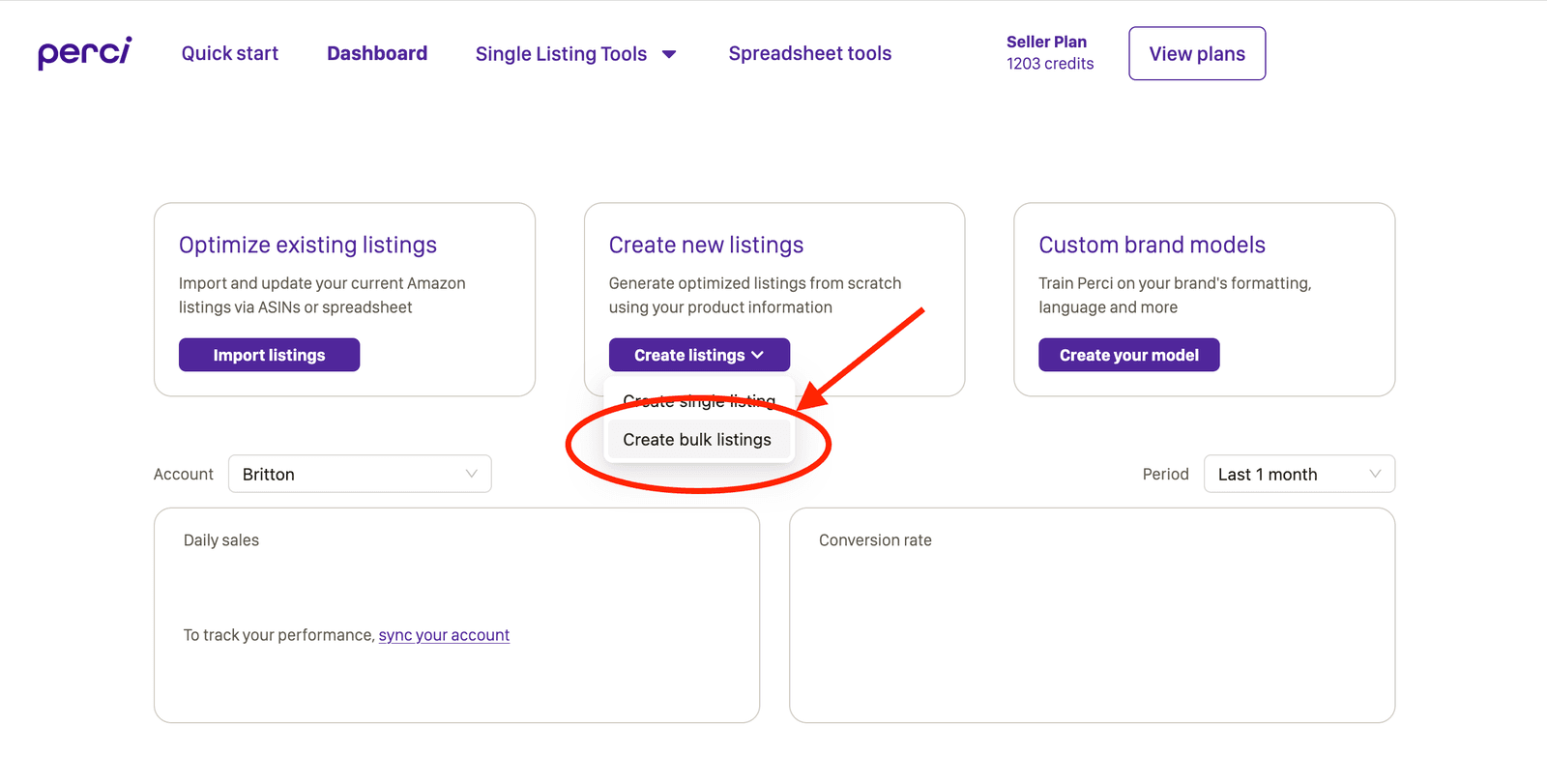
From the Perci dashboard, choose Create Listings, then Create Bulk Listings. This route creates draft listings from product information rather than importing live Amazon content.
Step 2
Prepare the product data
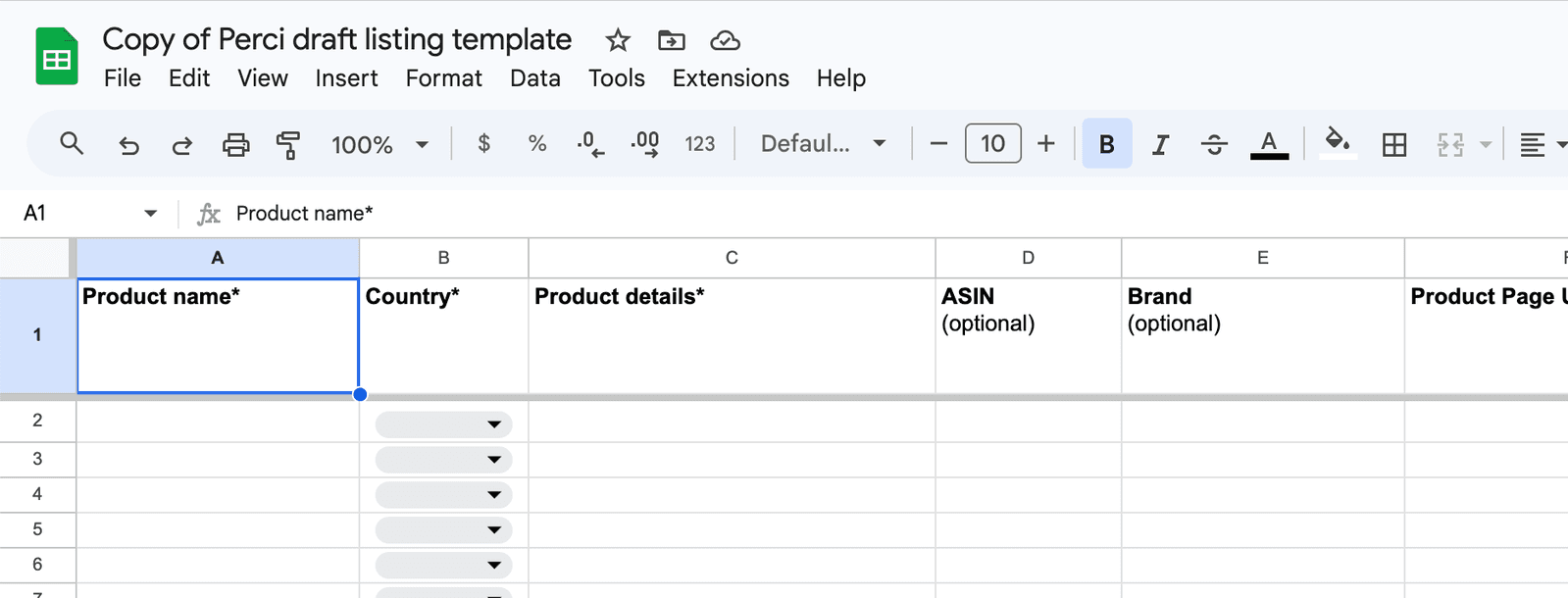
Download the draft listing template and add one product or variation child per row. The core fields are product name, marketplace country, and product details. ASIN, brand, and product page URL can be included when available.
Put the factual source material in Product details: dimensions, material, included components, compatibility, use cases, certifications, care instructions, and any claims the generated copy must respect.
Step 3
Structure parent and child variations
For variation families, identify parent and child rows and choose whether the variation data is uniform or individual. Add the variation theme and the values that distinguish each child, such as size, color, pack count, or style.
A family with three sizes and four colors can be represented as twelve child rows under one parent. Keeping that structure in the source file lets Perci generate differentiated titles while preserving the shared product story.
Step 4
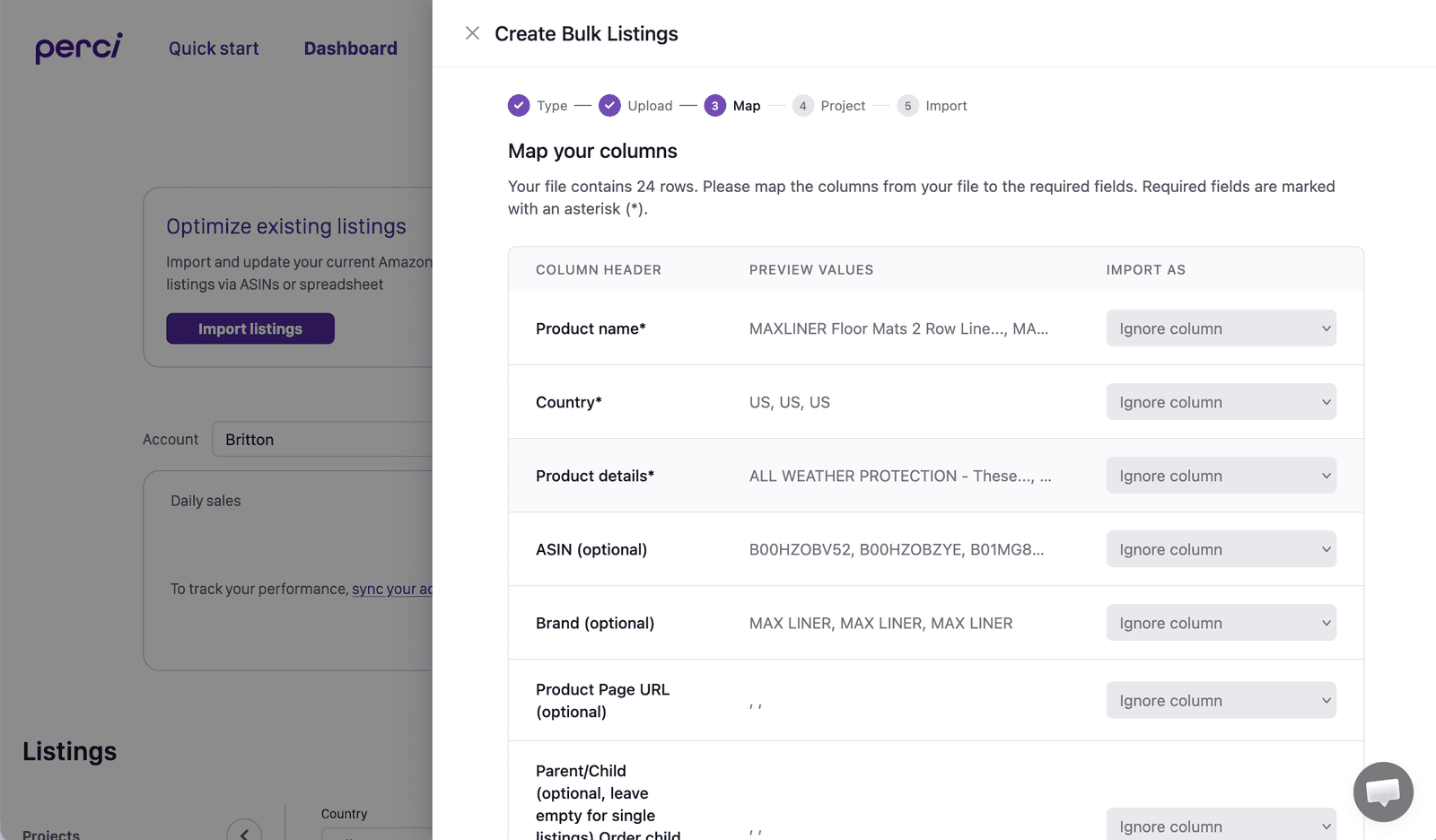
Upload and map the spreadsheet
Upload the completed file and map each source column to the matching Perci field. Confirm the marketplace and variation fields before creating the drafts.
The new listings appear in the dashboard as drafts, ready to move through keyword research, copy generation, and attributes together.
Step 5
Review the research inputs and keywords
Select the drafts and choose Generate Keywords, Copy & Attributes. Perci proposes search phrases and competitor ASINs for each product. Review the inputs, then run the research.
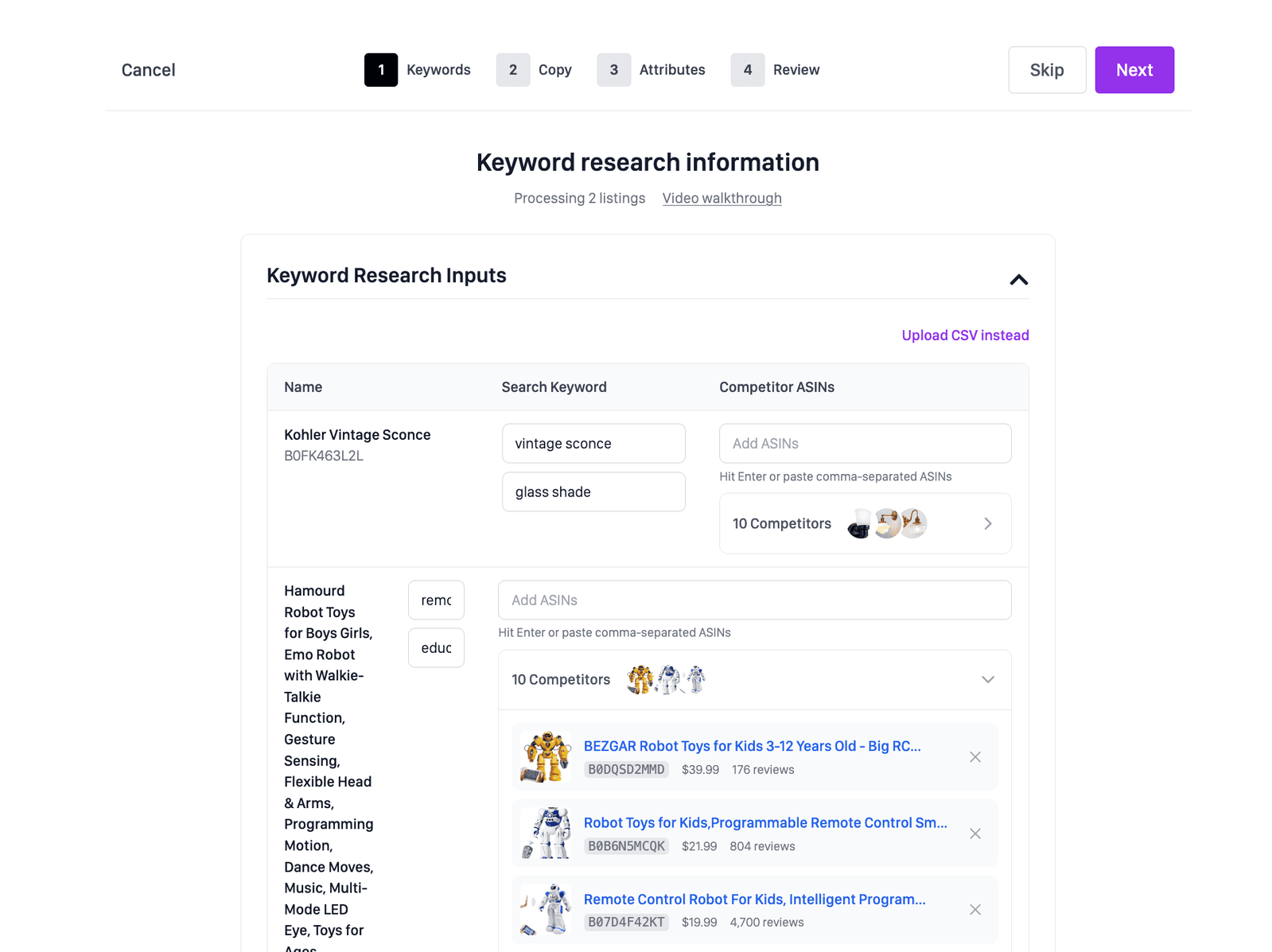
When processing finishes, approve the relevant keyword set. These terms guide the visible copy and backend search terms, so remove anything that does not accurately describe the product.

Step 6
Configure the complete listing build
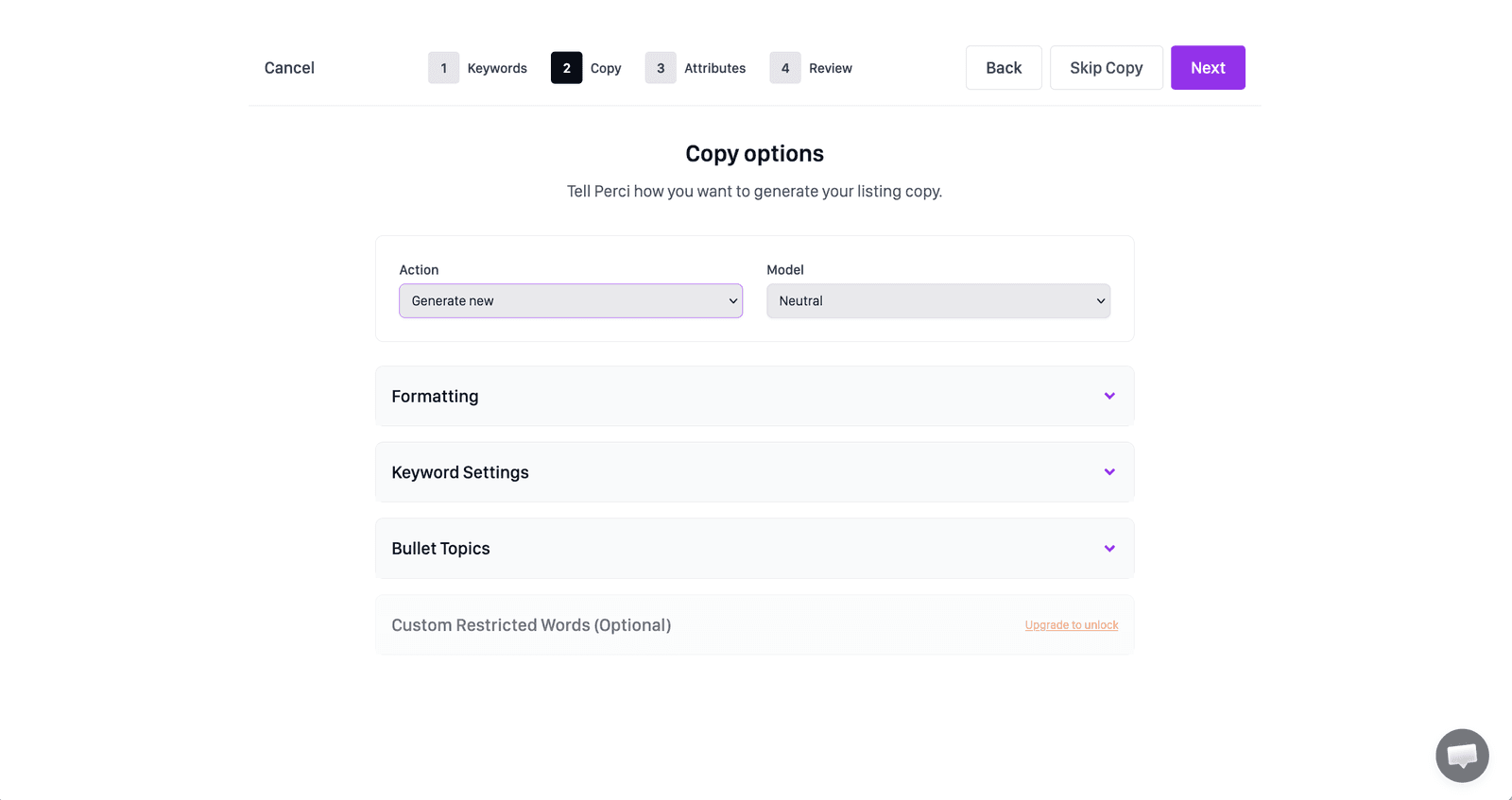
Choose Complete rewrite for new drafts. Set the title structure, bullet length and formatting, description format, backend keyword behavior, required bullet topics, and restricted words for the brand.
Review the variation family before generating. Perci can carry shared benefits across the family while using the correct size, color, or style information for each child.
Step 7
Generate the category attributes
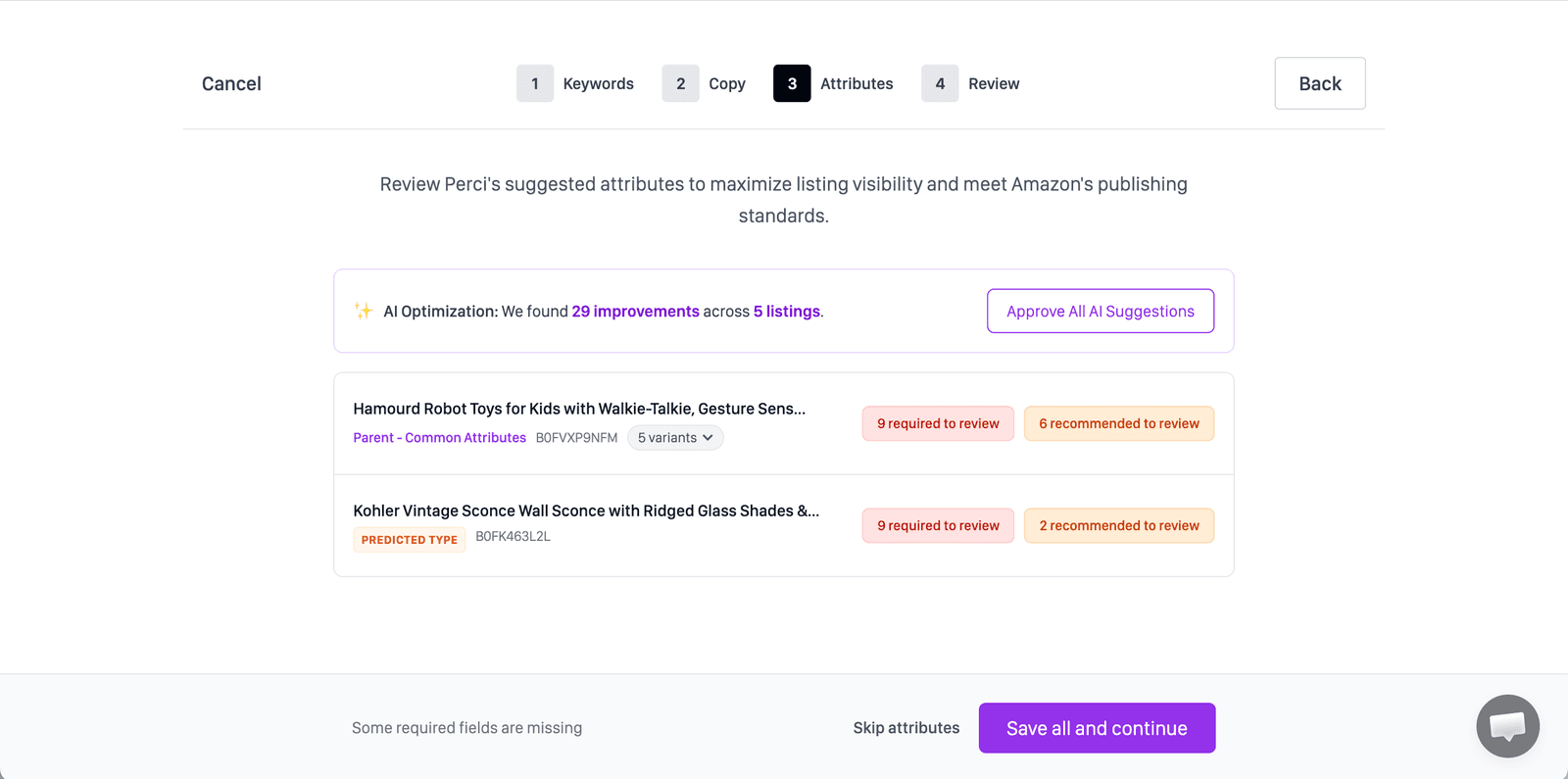
Connect or select the Amazon account for the target marketplace. Perci loads the applicable product type definitions, then suggests required and recommended attributes from the product data and generated listing.
Approve accurate values, correct anything that needs product knowledge, and fill any required field that remains unresolved. This review is where factual source data matters most.
Step 8
Review the family and prepare it for publishing
Use the final review to check the generated title, bullets, description, search terms, and attributes. The flat-file view shows the parent and child rows in their publishing structure.
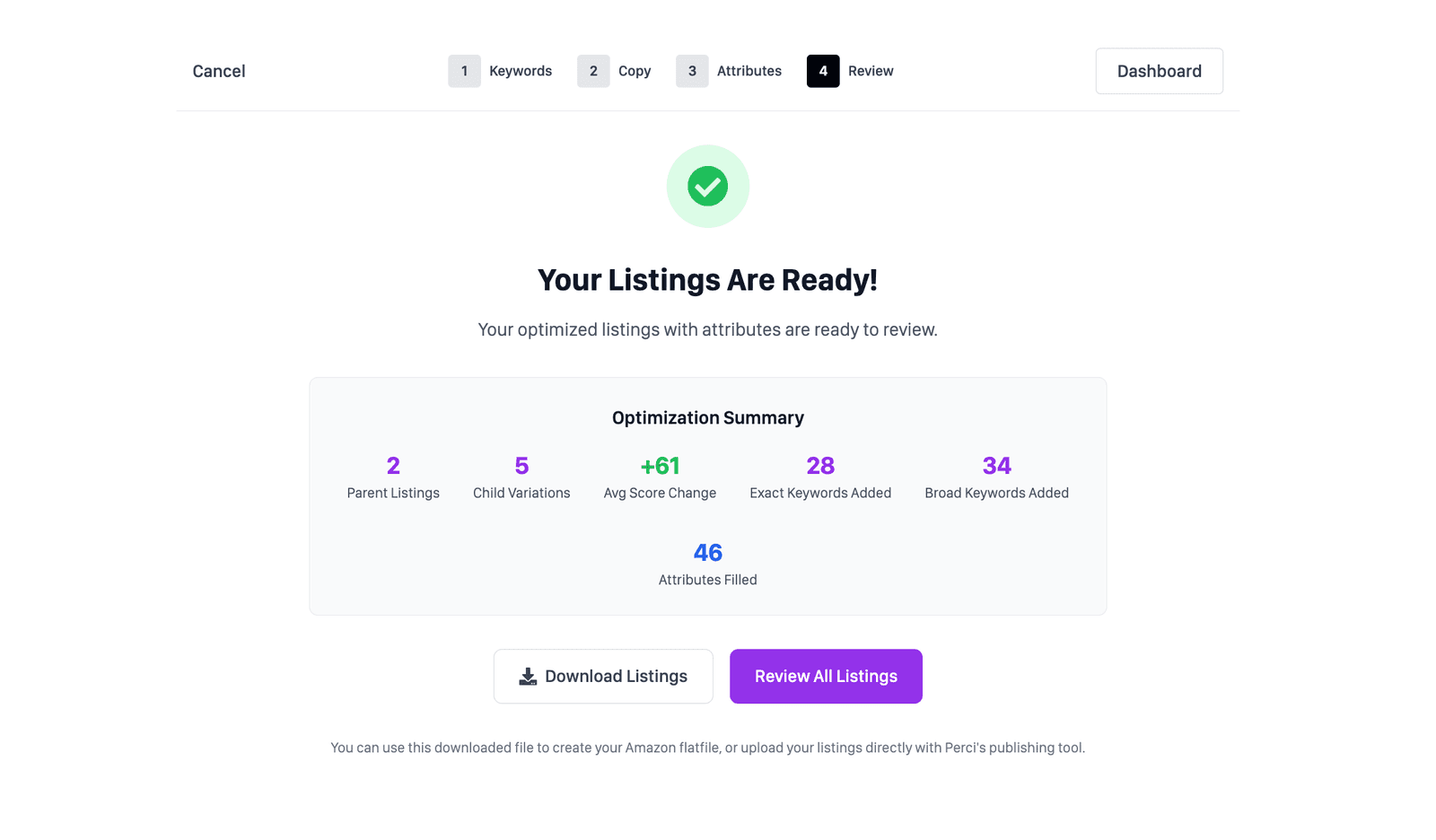
Once the family is approved, download the output or publish it through the connected Amazon account.