
Bulk listing optimization
How to optimize existing Amazon listings in bulk
Bring a set of live ASINs into Perci, research the market once, and rebuild the copy and backend attributes as one managed batch. This guide covers the complete workflow from import to final review.
Step 1
Import the listings you want to optimize
Start with the import method that fits the amount of catalog data you already have.
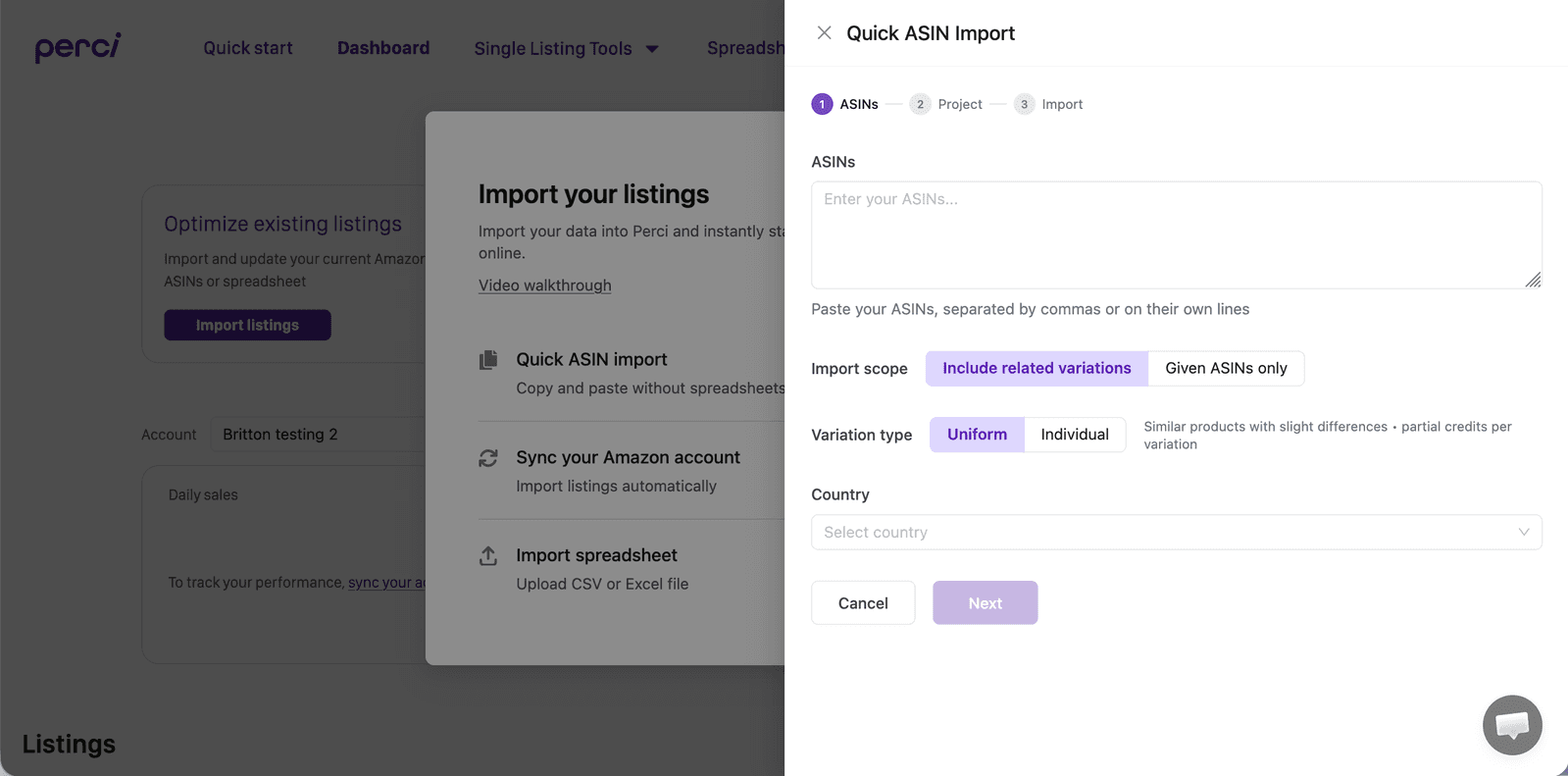
Quick ASIN import
For a straightforward batch, paste the ASINs into Perci, choose the marketplace and optionally assign a project. Perci pulls the current product data into your dashboard.
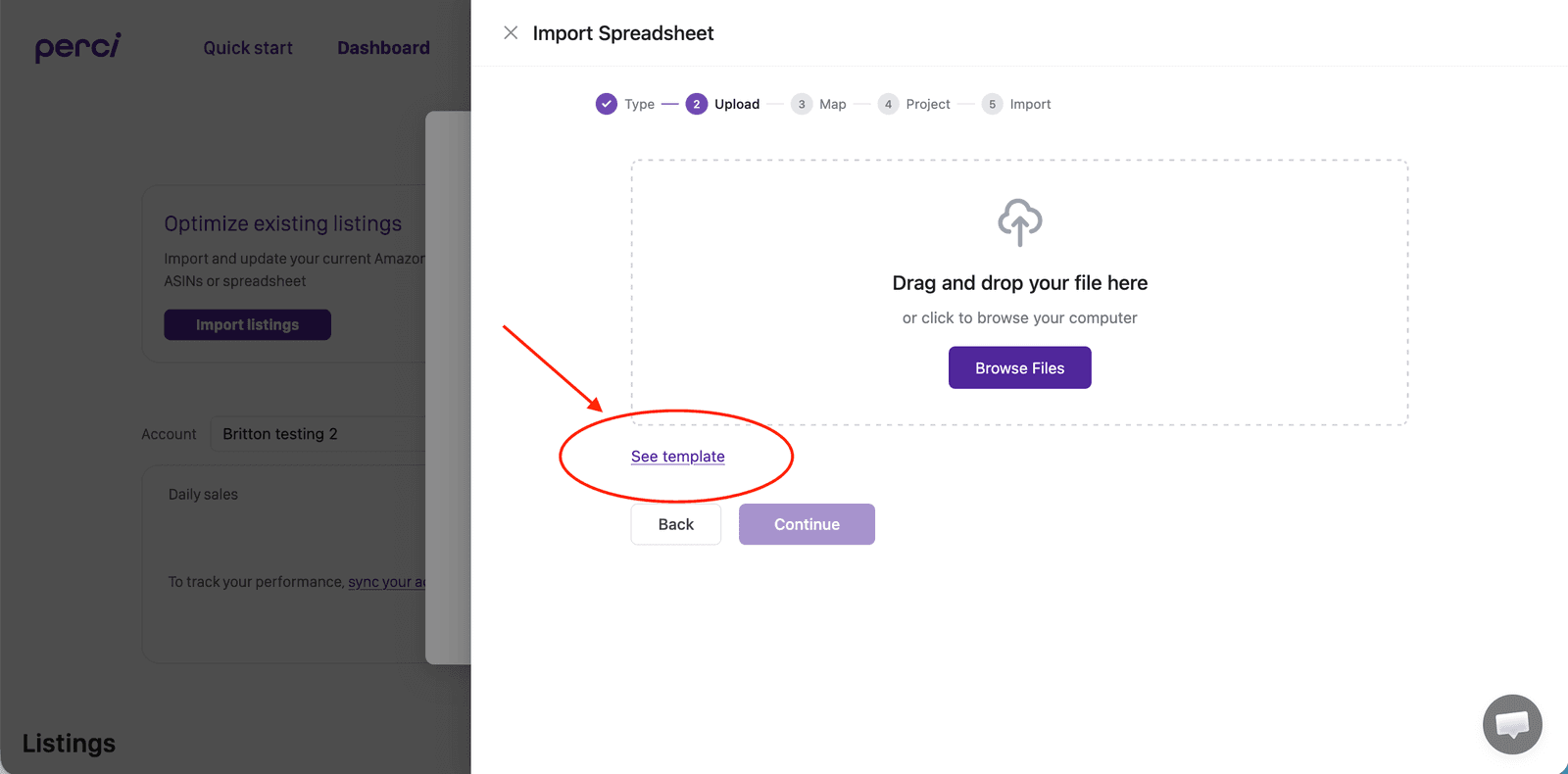
Spreadsheet import
Use the spreadsheet route when your batch already lives in a file. The ASIN template accepts ASIN, country, product name, keywords, and brand. You can also import existing title, bullets, description, and search terms, then map your columns during upload.
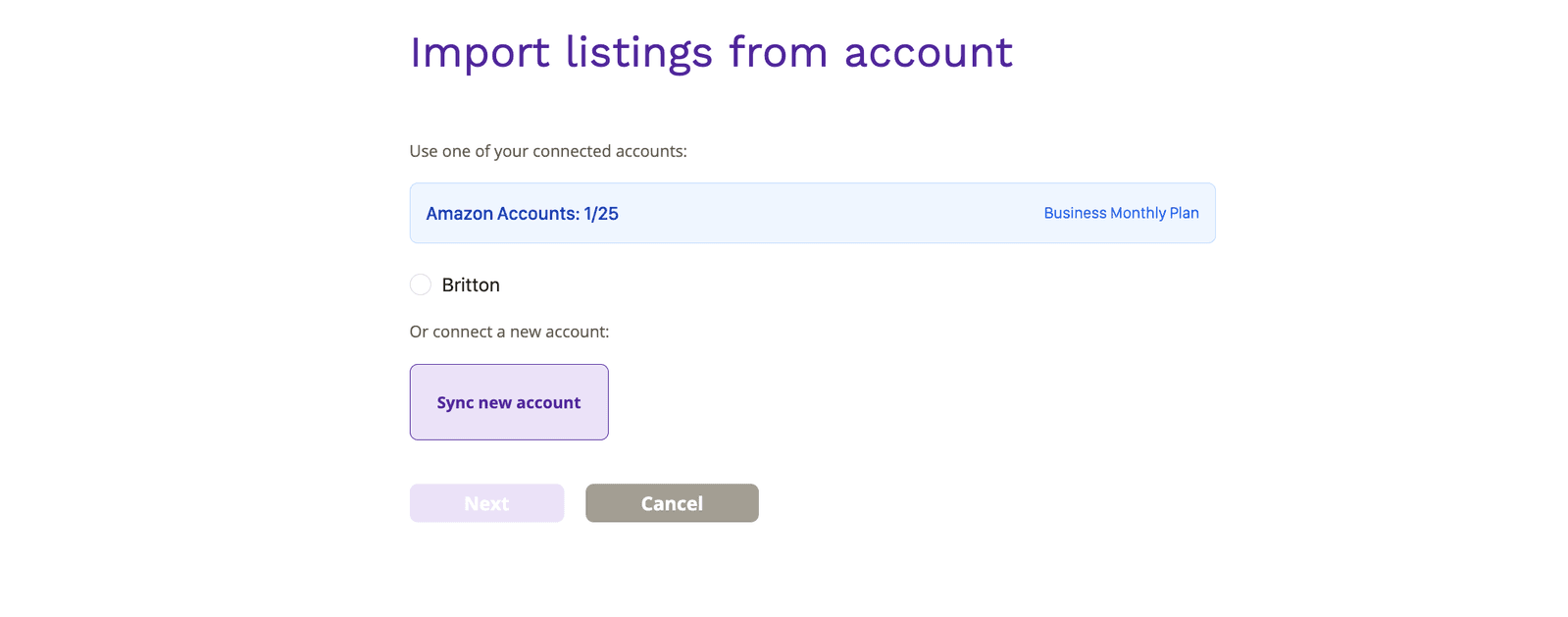
Amazon account sync
For a larger catalog, connect Seller Central, choose the brands or products you need, and import the selected listings directly.
Step 2
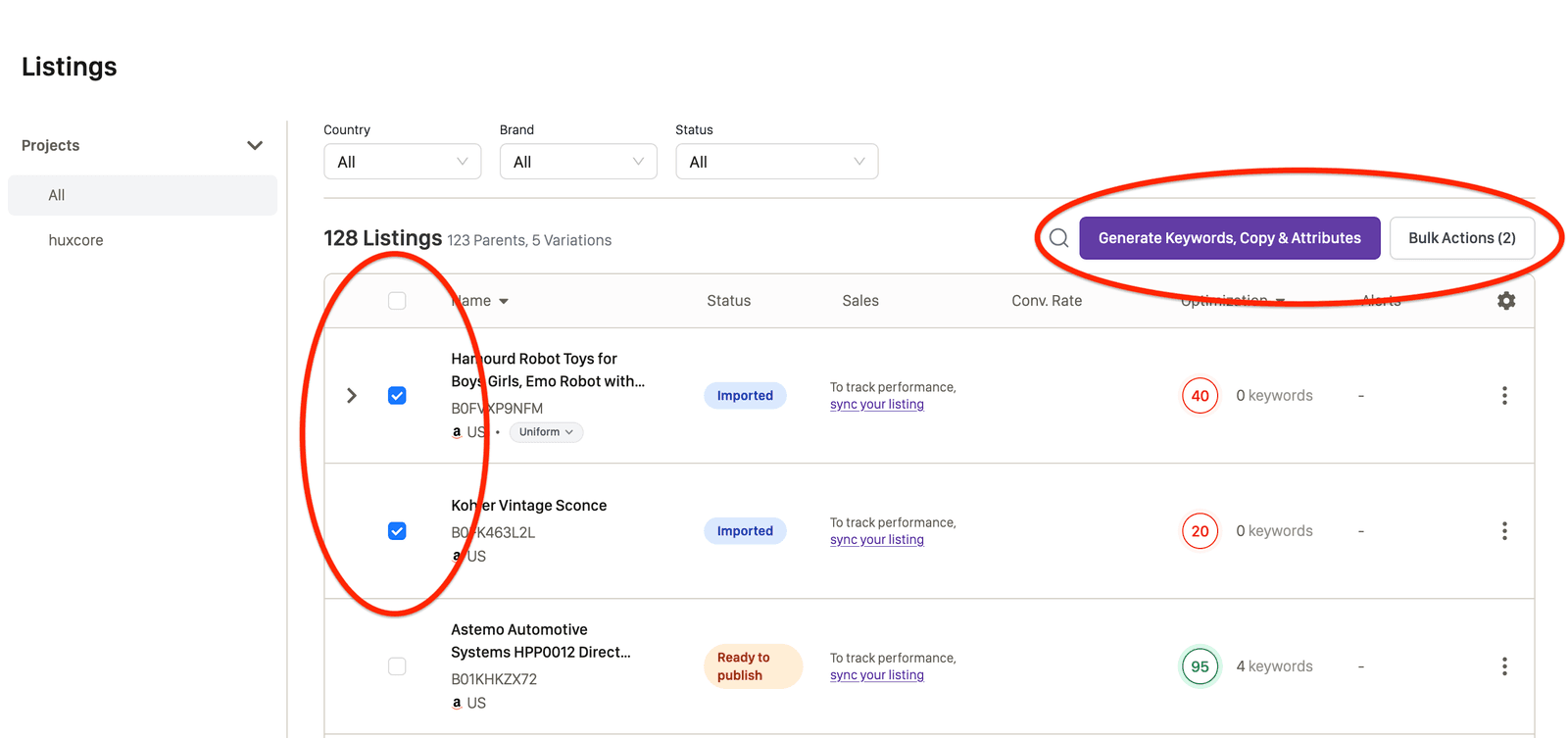
Select the batch and start generation
In the listing dashboard, select the products you want to process. Open the bulk action menu and choose Generate Keywords, Copy & Attributes.
The selected listings move through the same workflow together, so settings and brand rules stay consistent across the batch.
Step 3
Review the keyword research inputs
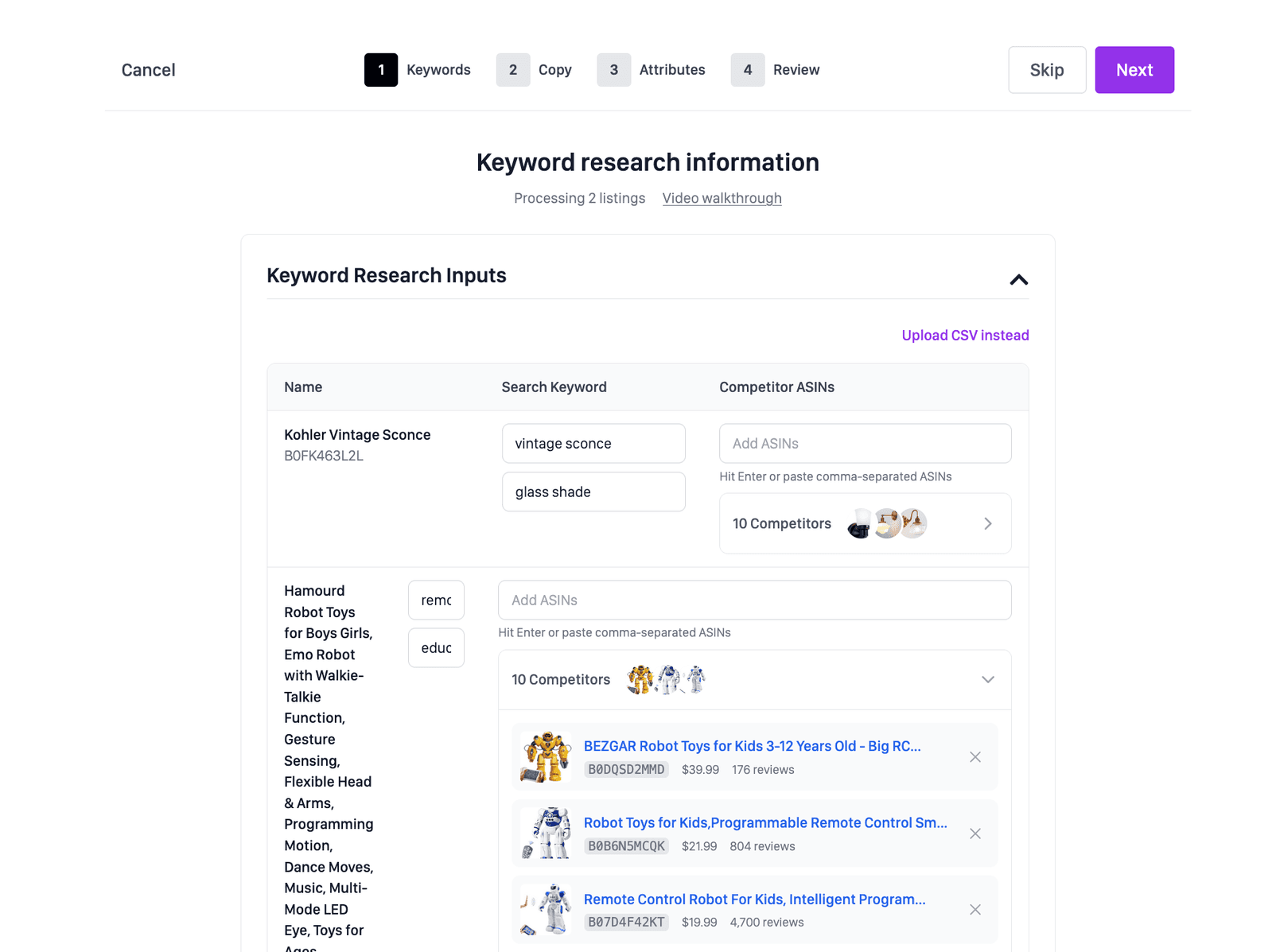
Perci prepares a search keyword and competitor ASIN set for each product. Review those inputs before research begins. Add a must-cover competitor, remove an irrelevant one, or adjust the seed search when the product sits in a niche subcategory.
Step 4
Approve the keyword set
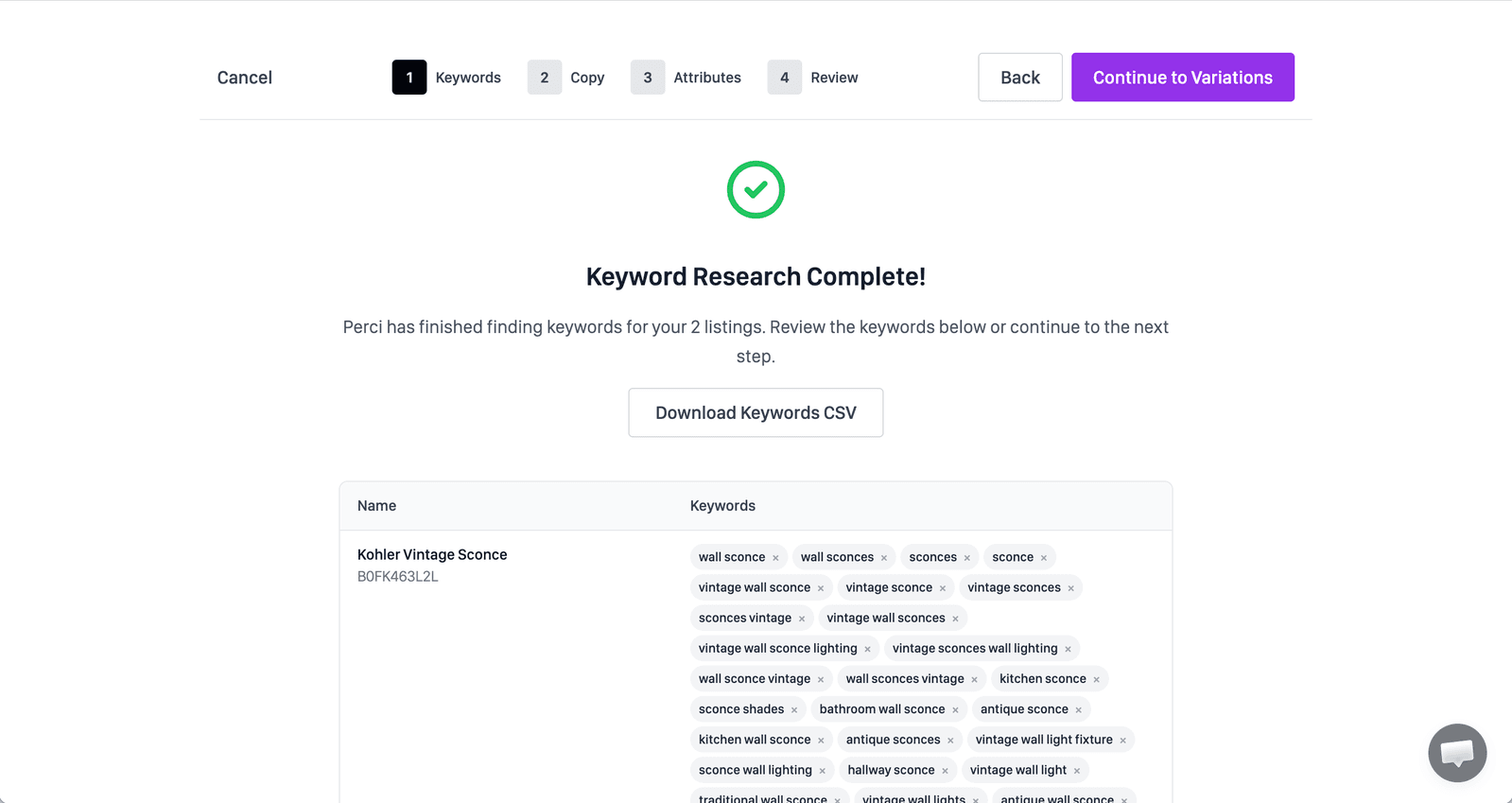
Perci collects terms from the selected searches and competitors, checks the available keyword metrics, and removes brand names, misspellings, foreign-language terms, and irrelevant results.
If your connected account has SQP keywords worth optimizing, Perci places them at the top of the keyword review list so they receive attention before the broader research set.
Review the finished keyword set before copy generation. You can approve it in Perci or download it for an offline review, then upload your edits.
Step 5
Configure the listing rewrite
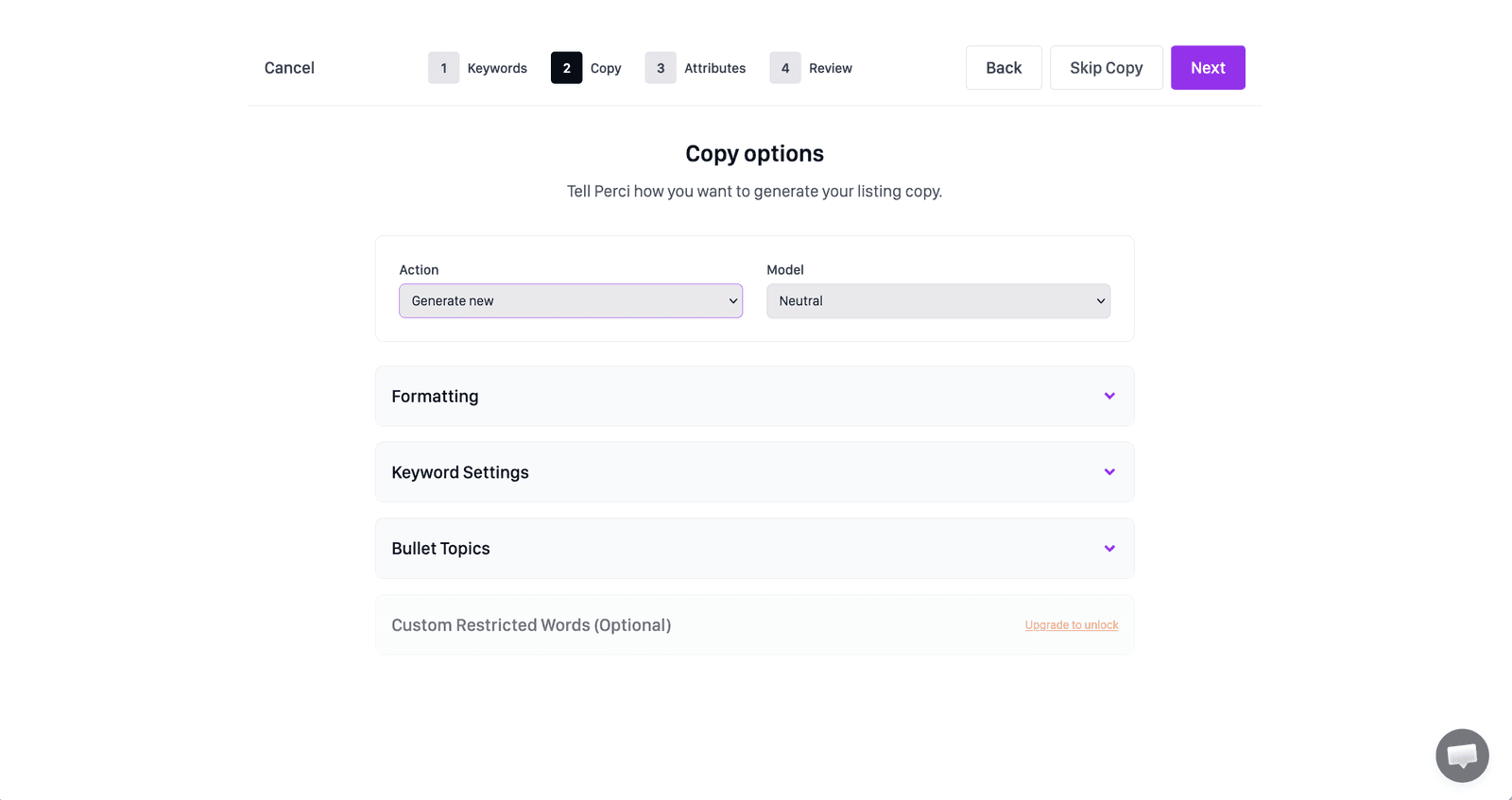
Choose how Perci should use the copy currently on the listing.
Generate new
Generate new creates an all-new title, bullets, and description. Use it when you want to start the listing copy again from scratch. This is the most popular option, even for existing listings.
Optimize existing
Optimize existing reworks your current copy, updating its formatting to fit Amazon best practices while improving SEO coverage.
Set the rules that should apply across the batch: title length and structure, bullet length and headers, description format, backend keyword behavior, bullet topics, and any custom restricted words. Variation families can be reviewed before generation so parent and child listings remain coherent.
Step 6
Generate and review backend attributes
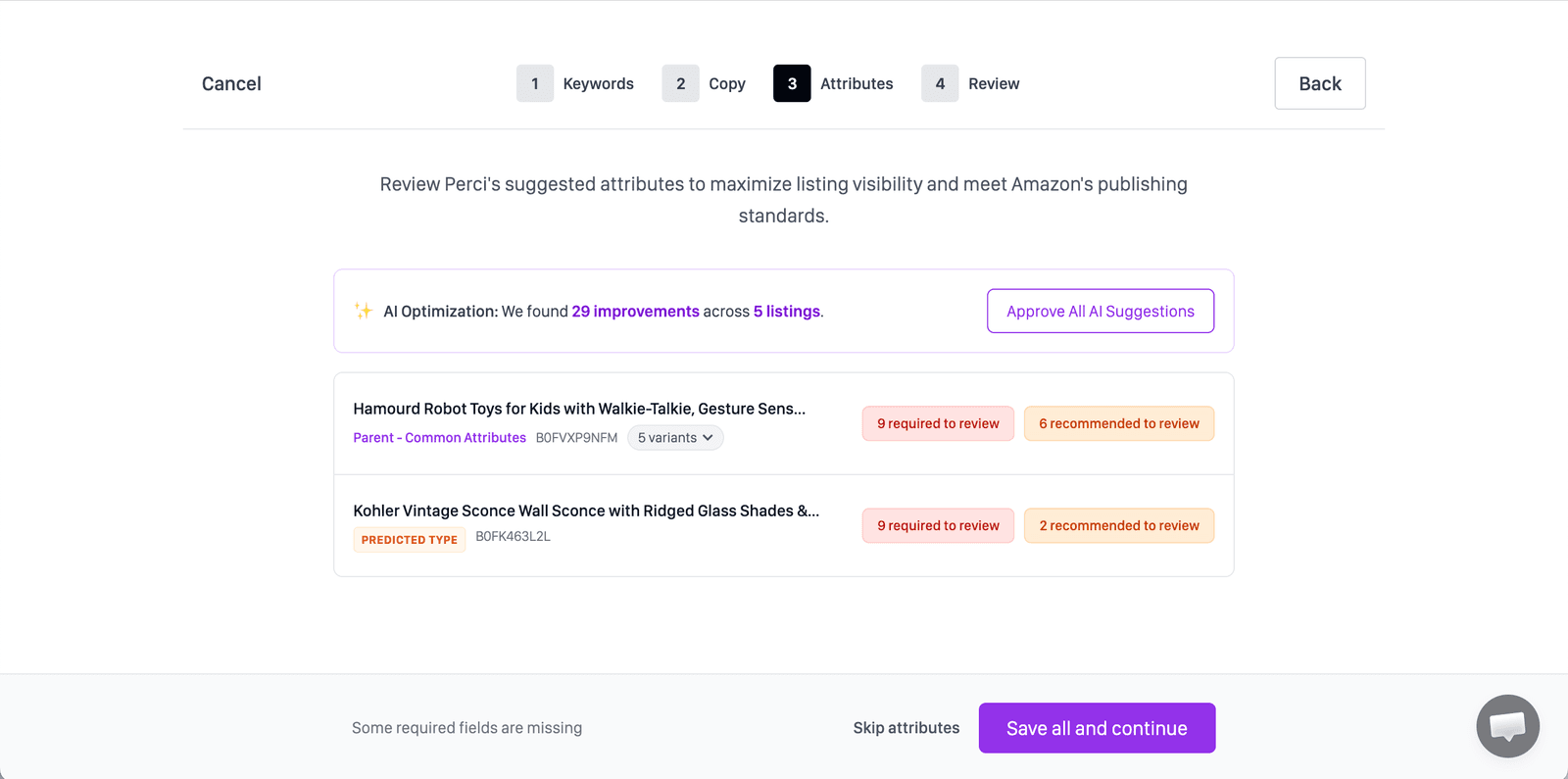
After the copy is generated, choose the connected Amazon account Perci should use to load the correct product type definitions. You can generate required attributes only or include recommended fields as well.
Review Perci's suggested values across the batch. Approve accurate suggestions, edit anything that needs product knowledge, and complete any required field that is still missing.
Step 7
Review the completed listings
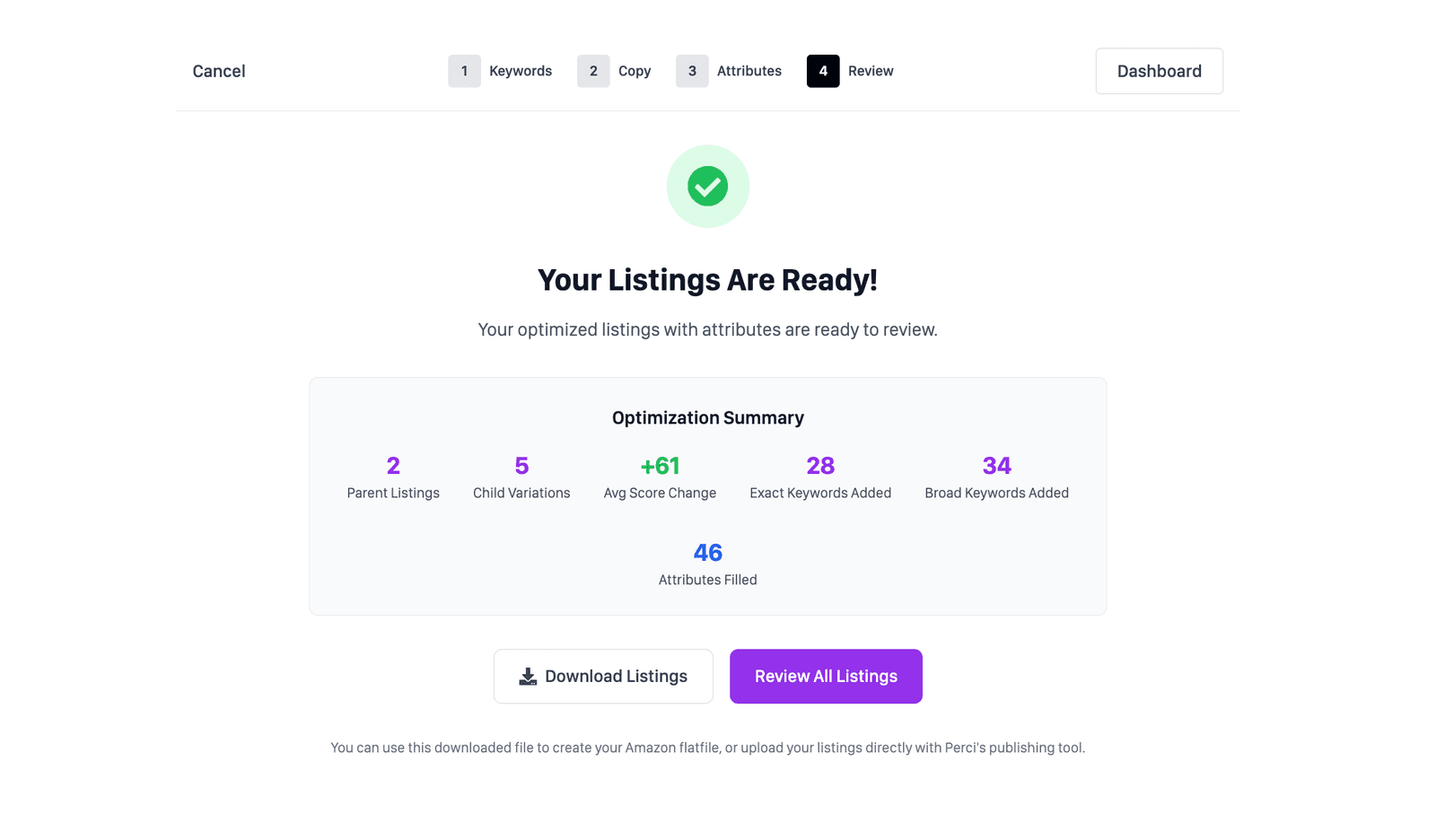
The final screen puts the old and new listing content together for review. Check the title, bullets, description, search terms, and attributes before approving the batch.
The flat-file view shows the finished parent and child rows with copy and backend data in the correct structure for the marketplace.
Step 8
Download or publish the batch
Once the review is complete, download the output or publish approved updates through your connected Amazon account. The processed listings remain in the dashboard with their status, so the team can see what is ready and what still needs attention.
Optimize a listing free →